Main page

The RACETIMER home page lists links to previously completed races and links to the HTML- and JavaScript-based RACETIMER tool and the RACETIMER manual page (this page). The listed races will, if clicked, open the corresponding race results in viewer mode.
RACETIMER Functions
The image below displays the race administration panel part of the RACETIMER tool with a following brief description of the main functionality.

Race Info
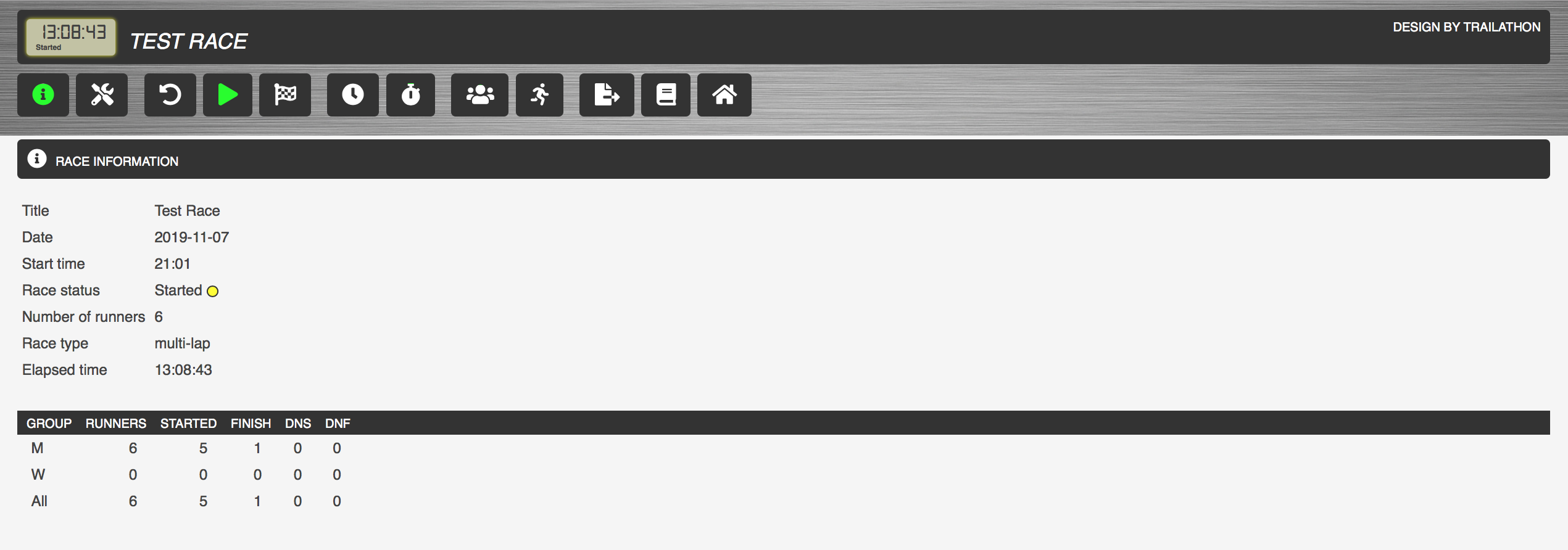
The button opens the race information panel, which gives a summary of race details such as name, start date/time, number of participants, etc.
RACETIMER Settings
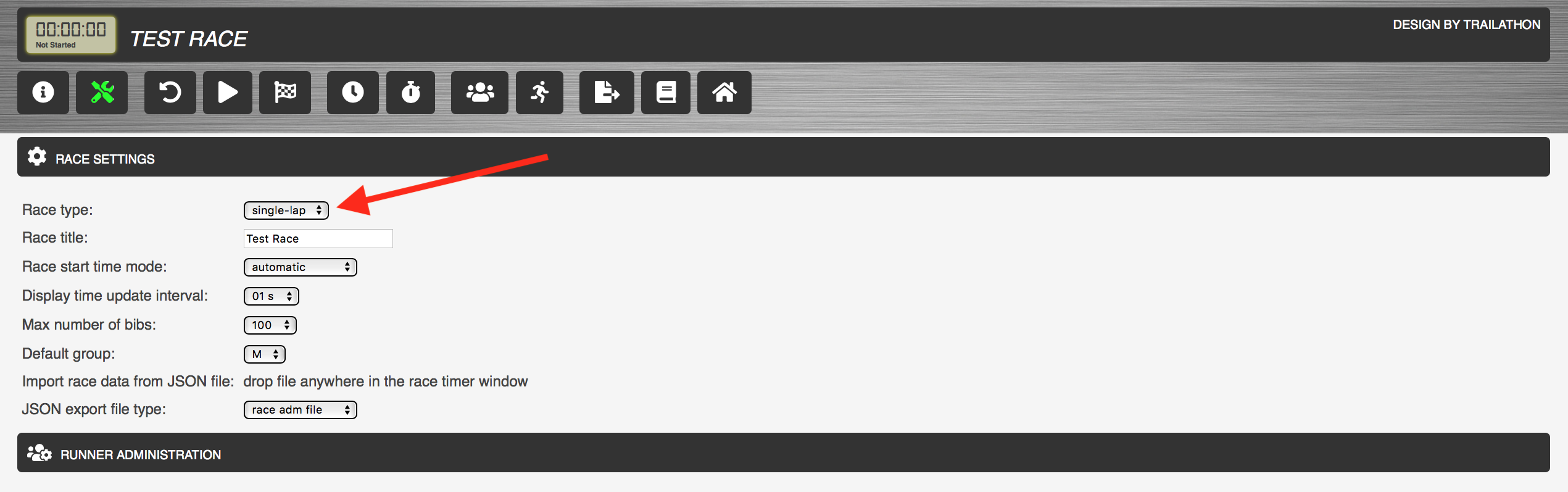
The button opens the RACETIMER settings panel where race details can be set, runners can be added to the race and sort categories can be specified.
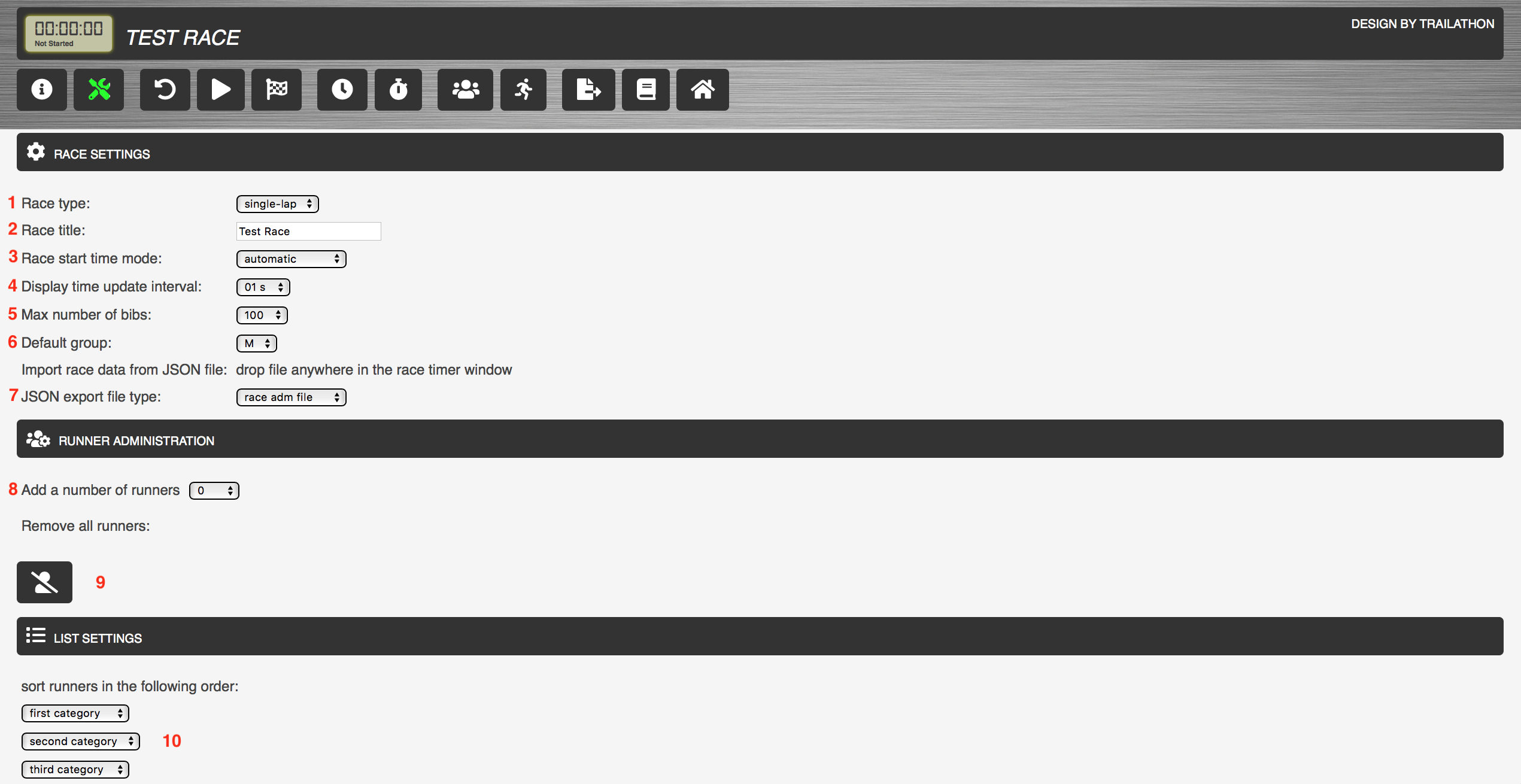
- Select race type:
- single-lap race (default)
- multi-lap race
- backyard
- Specify a title for the race (will appear in the header of all race pages)
- Race start time mode:
- automatic (default) => the race start time will be set when the race is started
- fixed starting time => the specified will be used and not modified when the race is started (can be changed at any time even when the race is completed)
- Select display time update interval (1 second is the default value). The display time can be turned off without effecting the race data, it is only used for display purposes.
- Select max number of bibs (maximum number of runners)
- Select default group (the group used when nothing else is specified)
- JSON export format:
- race administration file
- race results viewer file
- Add a specified number of runners
- Remove all runners
- Specify runner sorting categories
Runner Administration Functionality
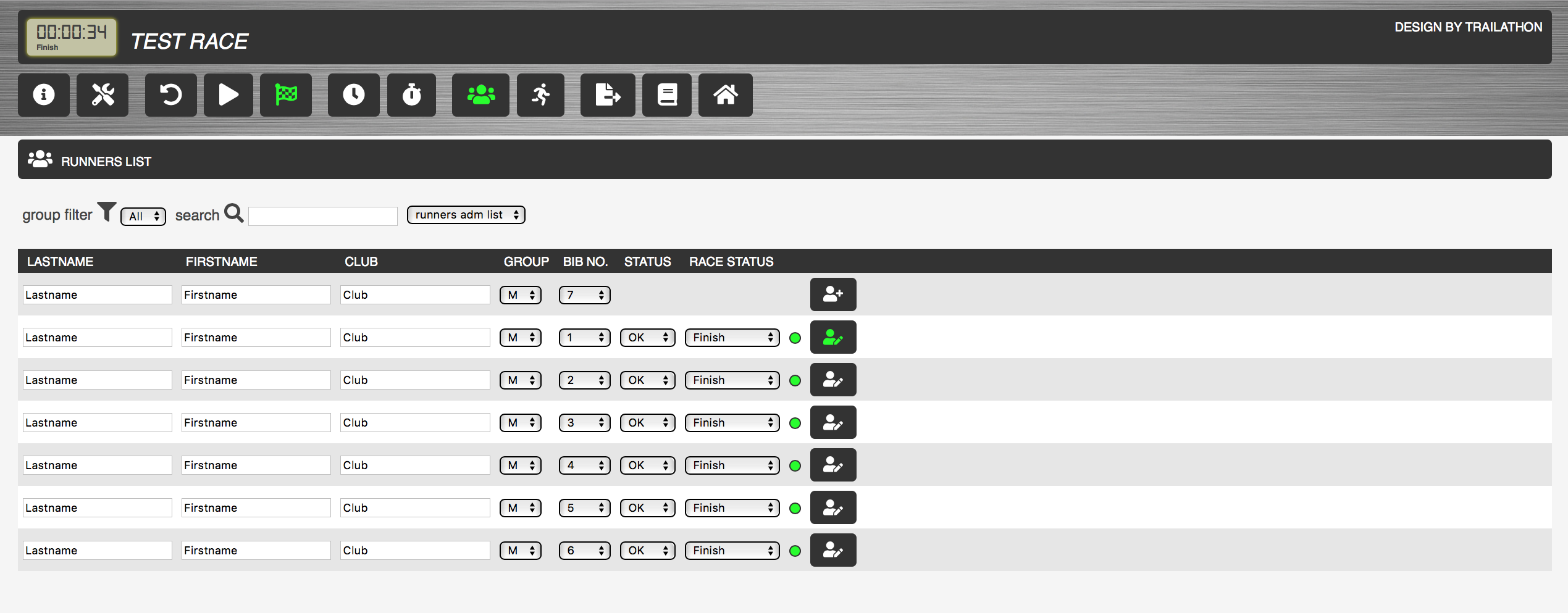
The button opens the runners administration/list panel where new runners can be added to the race and the data for already added runners can be updated. Note that in order to be able to add runners and modify details for already added runners, the list type must be set to runners adm list (field 3 in the figure below).

- Group filter (only runners in selected group will be listed)
- Search (only runners matching search criteria will be listed)
- Select list type:
- runners adm list (runner data can be modified)
- runners list (runner data cannot be modified)
- results list
- New runner data field
- Add new runner
Add New Runners
To add a new runner to the race, specify name, bib no., group in the new runner fields and press . The new runner will then appear in the list of runners as in the figure below.
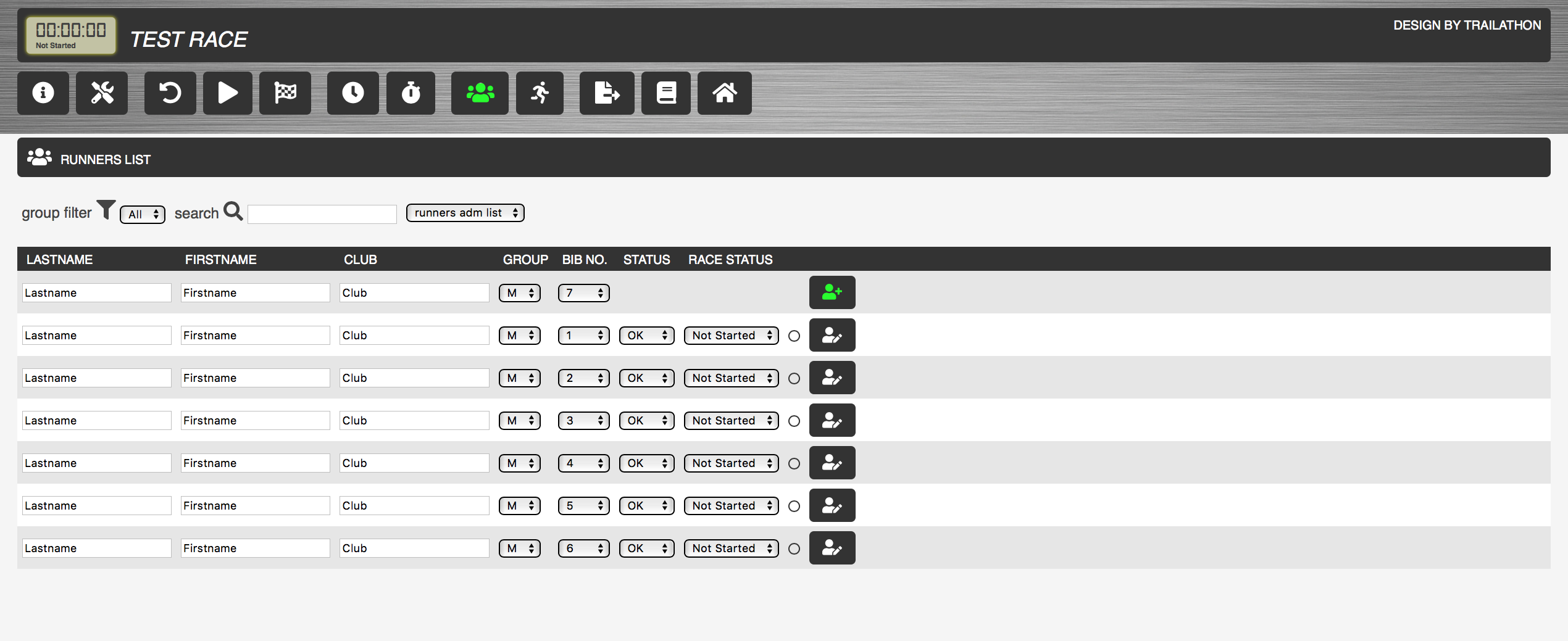
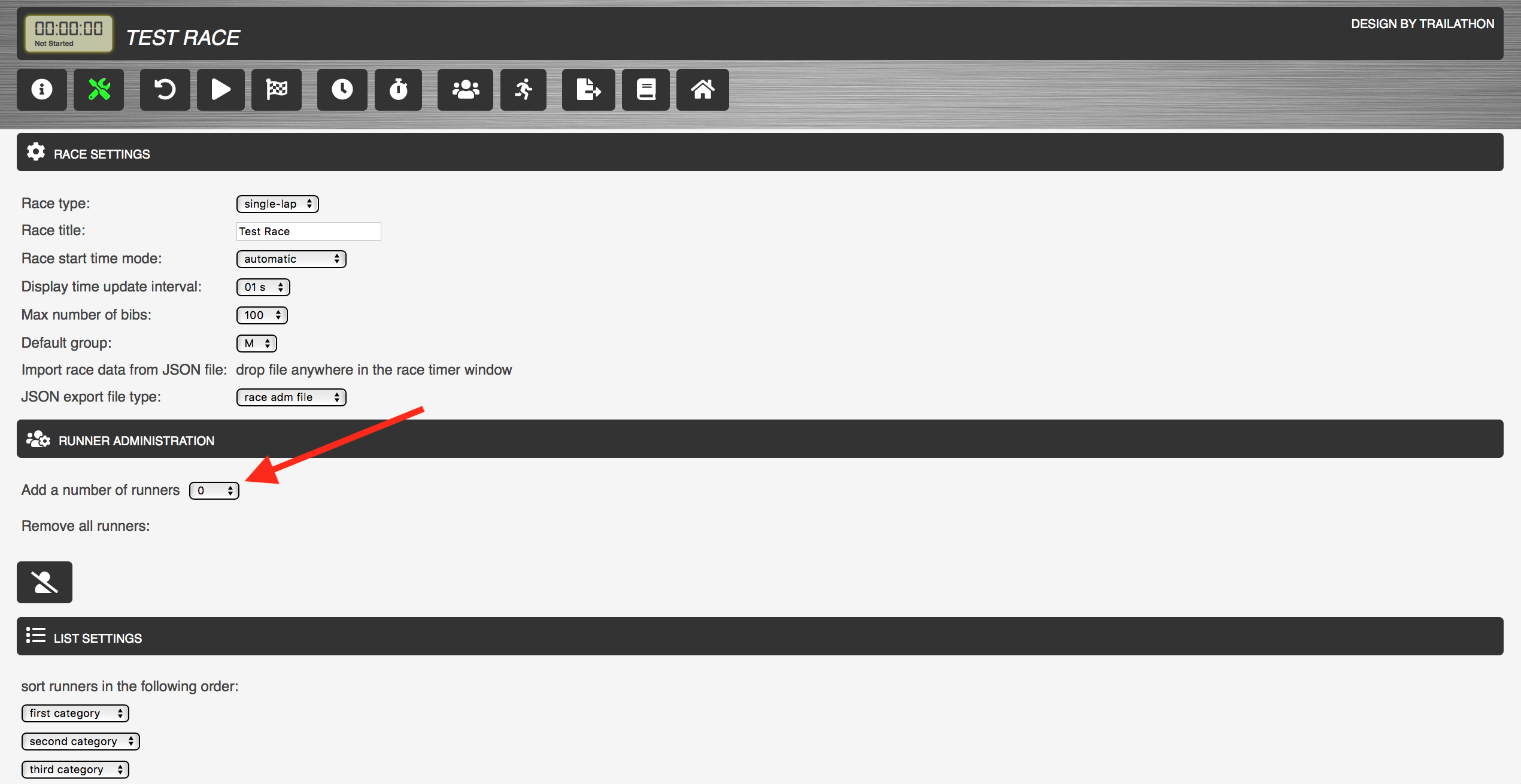
Runners can also be added using the "add a number of runners"-functionality in race settings
Modify Runner Data
Name, club, group and bib No. and runner status can be edited directly in the list. Runner status can be either OK, DNS or DNF. To add contact details for a specific runner, press the edit button to open the runner edit panel (see figure below).
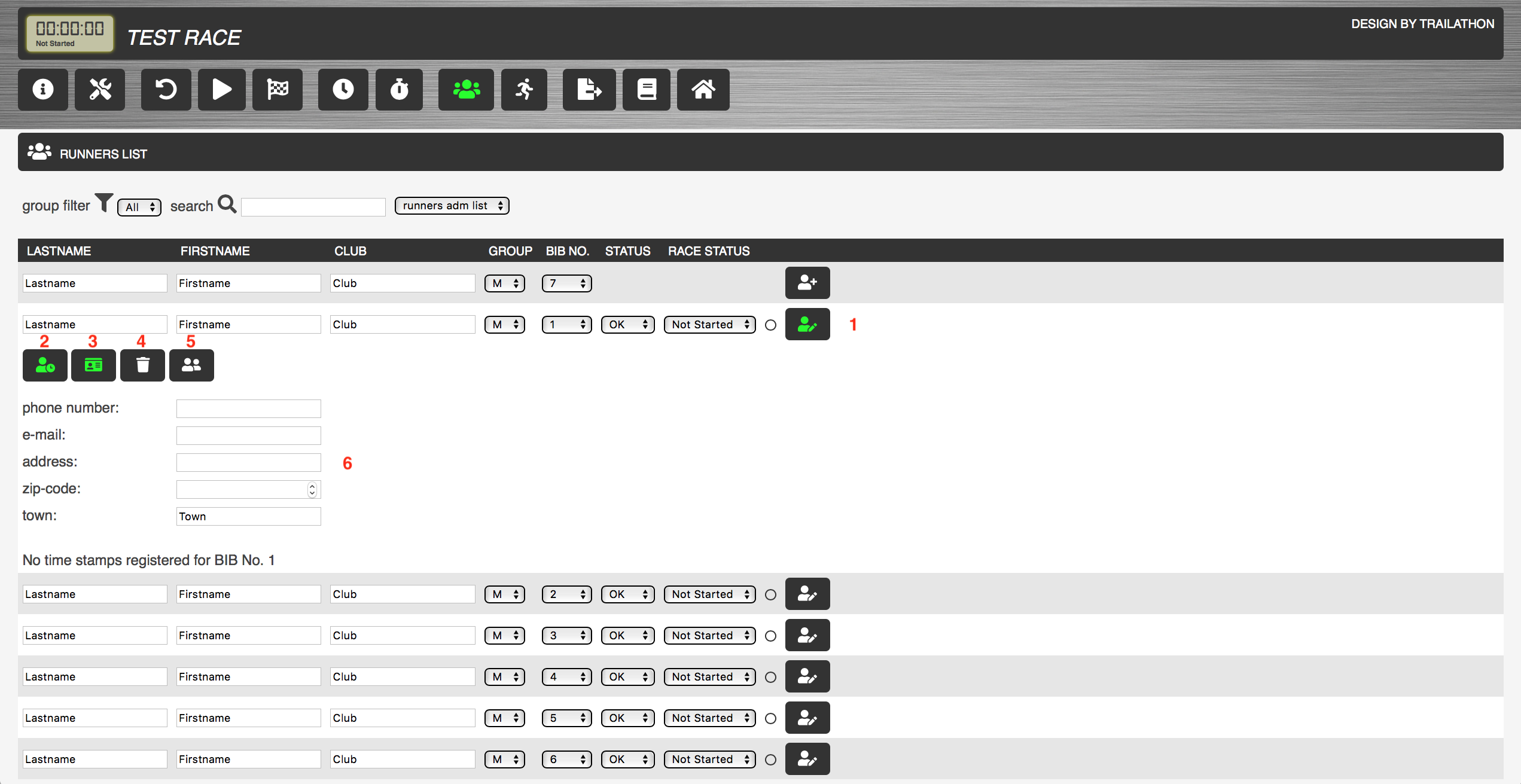
- Open/close runner data panel
- Open/close runner contact details panel (opened as default)
- Open/close runner lap-data panel (open as default)
- Remove runner from list
- Make a copy of runner
- Edit contact details
Start race
To initialize the race timing functionality and start recording lap data, the race must be started. This is done by pressing the start button . To reset the race and restart, press and then start again . When the race is started, the display time will be updated automatically every second (default settings). To turn of the updating of the display time, press .
Single-lap race
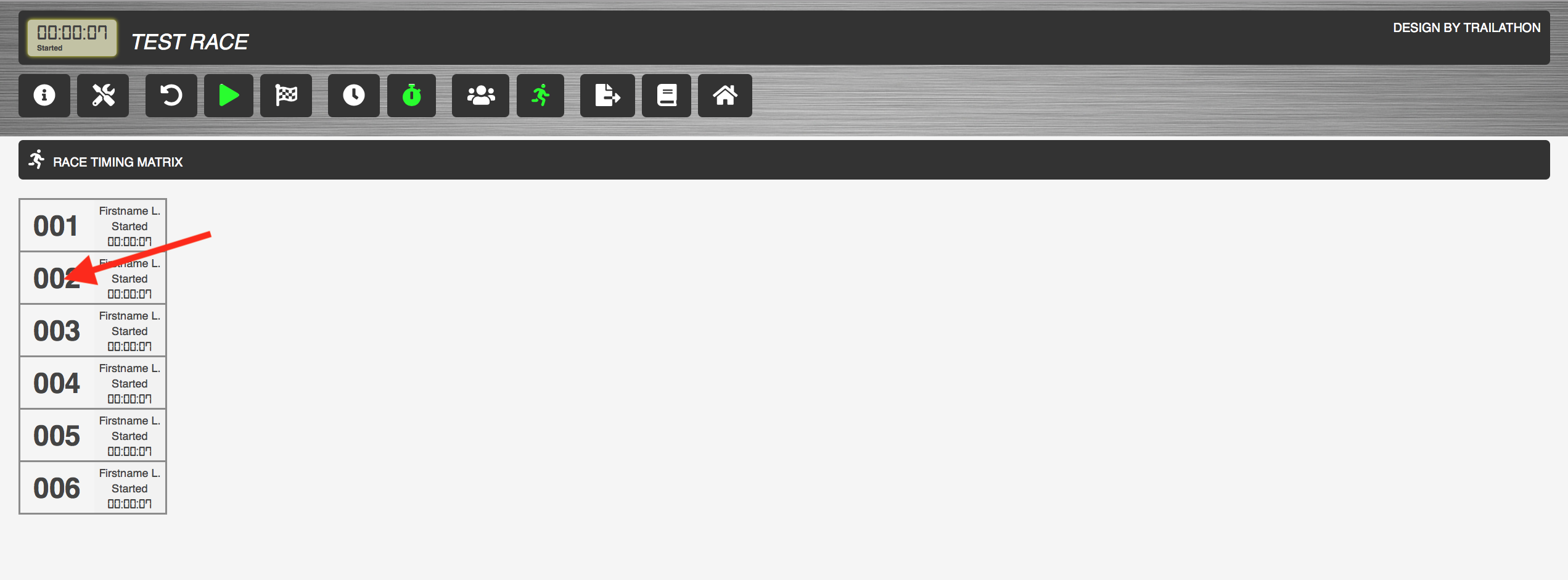
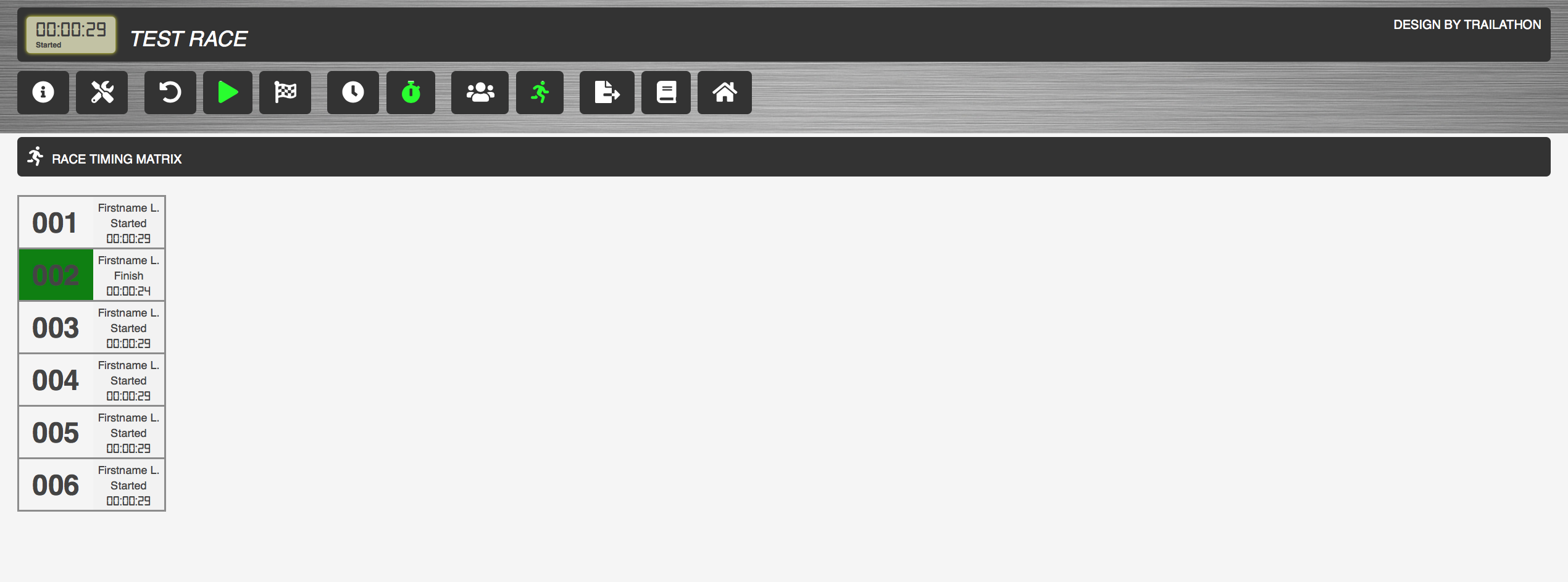
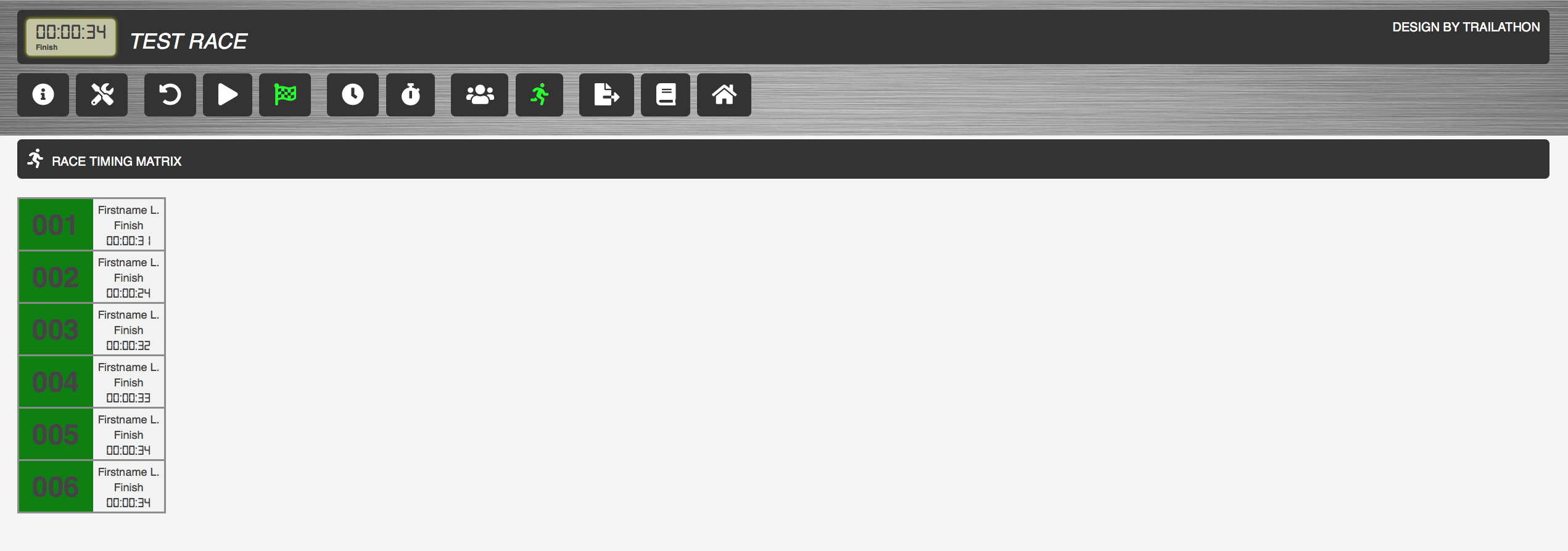
To register finish times for a single-lap race open the race timing matrix by pressing (in case not already open). When a bib No. is clicked (or touched on a hand-held device), the runner status is set to finish and the finish time is registered. To reset the runner status, double-click the bib No. (or double touch on hand-held devices). When a runner bib No. is clicked the background color of the bib No. field will be changed from white to green. For runners with DNS or DNF status, the bib No. field background will be red. DNF or DNS status is set in the runner administration list .
Multi-lap race
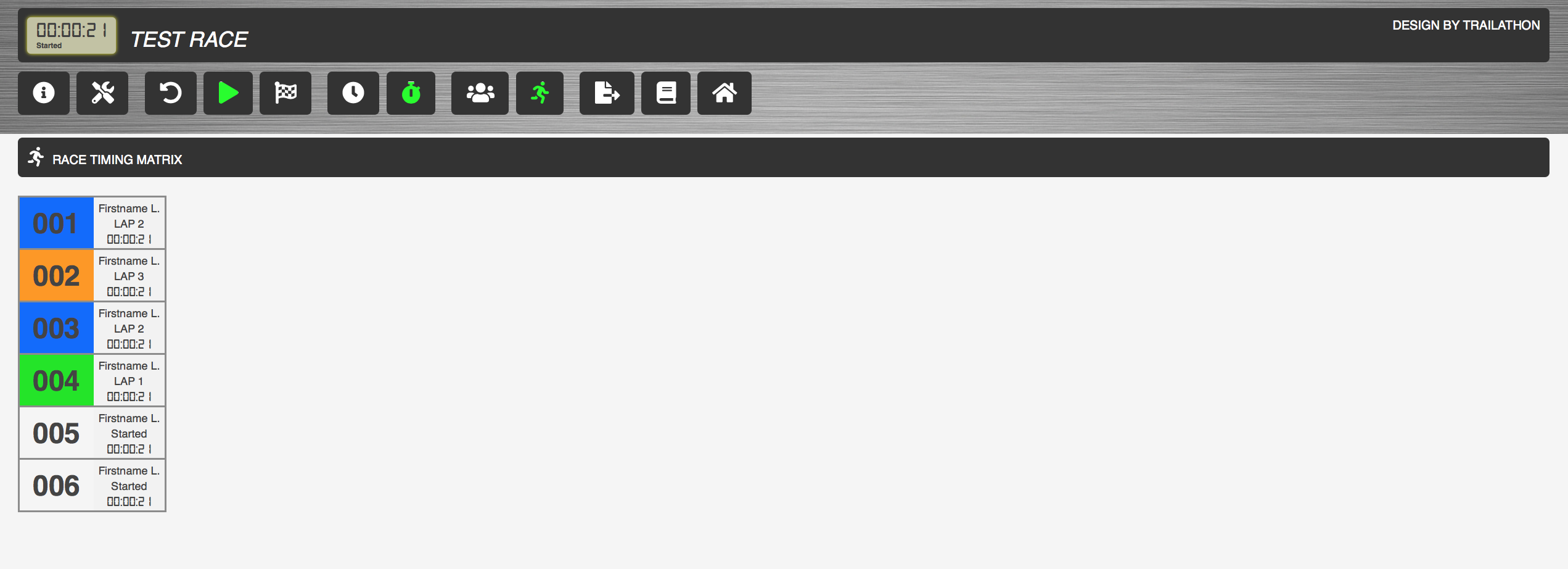
For a multi-lap race a clock on a bib No. in the race matrix will not set the runner status to Finish, it will just add a new lap for the runner and set finish time and lap time. the lap start time depends on if it is a multi-lap race or a backyard race. Adding a new lap will change the background color of the bib No. field (see figure below).
Modify registered lap data
Registered lap data start time, finish time and lap time can be modified by opening the runner edit panel for a runner in the runner administration list .
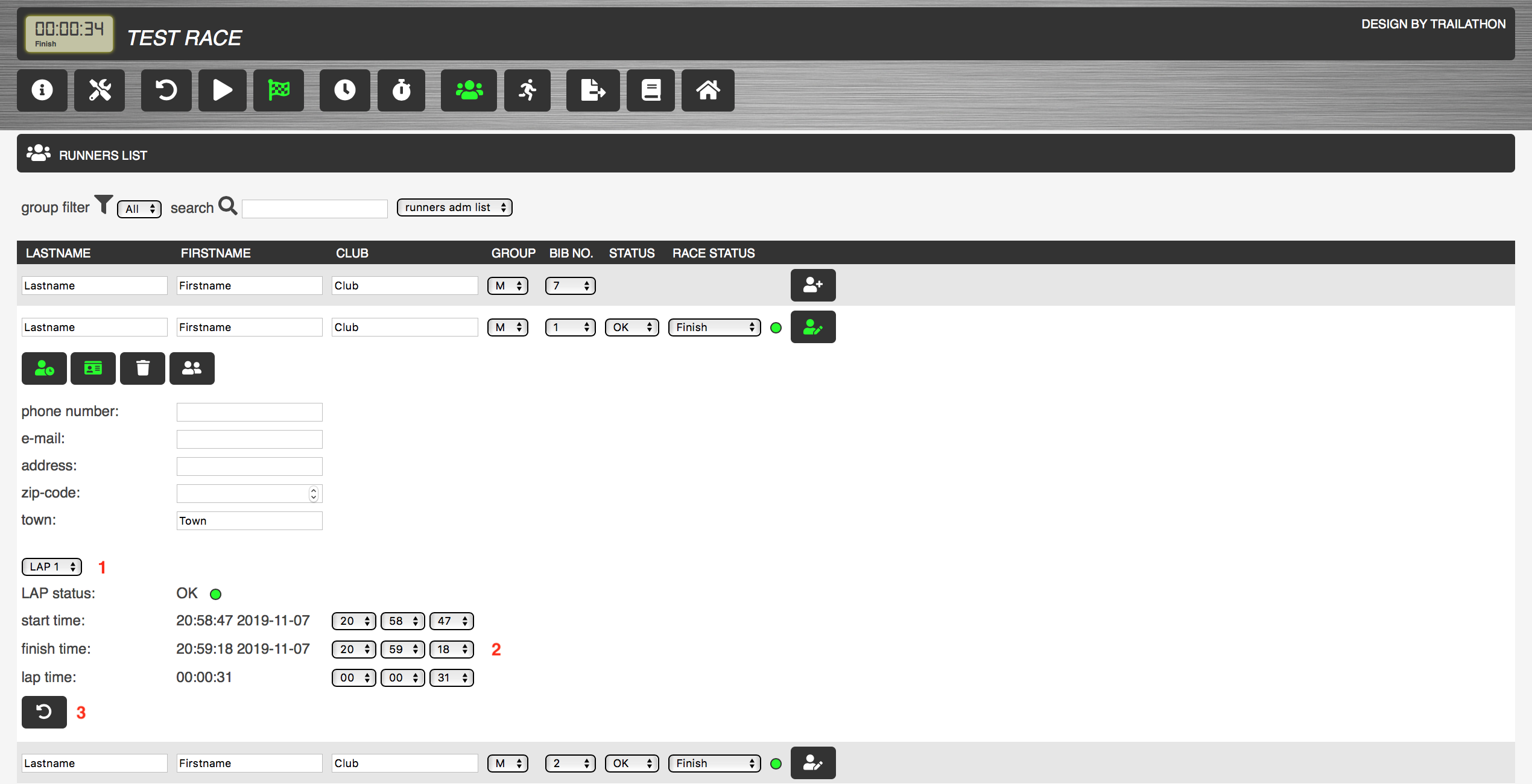
- Select lap
- Modify lap data:
- lap start time
- lap finish time
- lap time (finish-start)
- Remove last lap
The results list functionality is enabled as soon as the first lap time is registered. To generate a result list, open the runner administration panel by pressing in the RACETIMER main menu.
Single-lap race
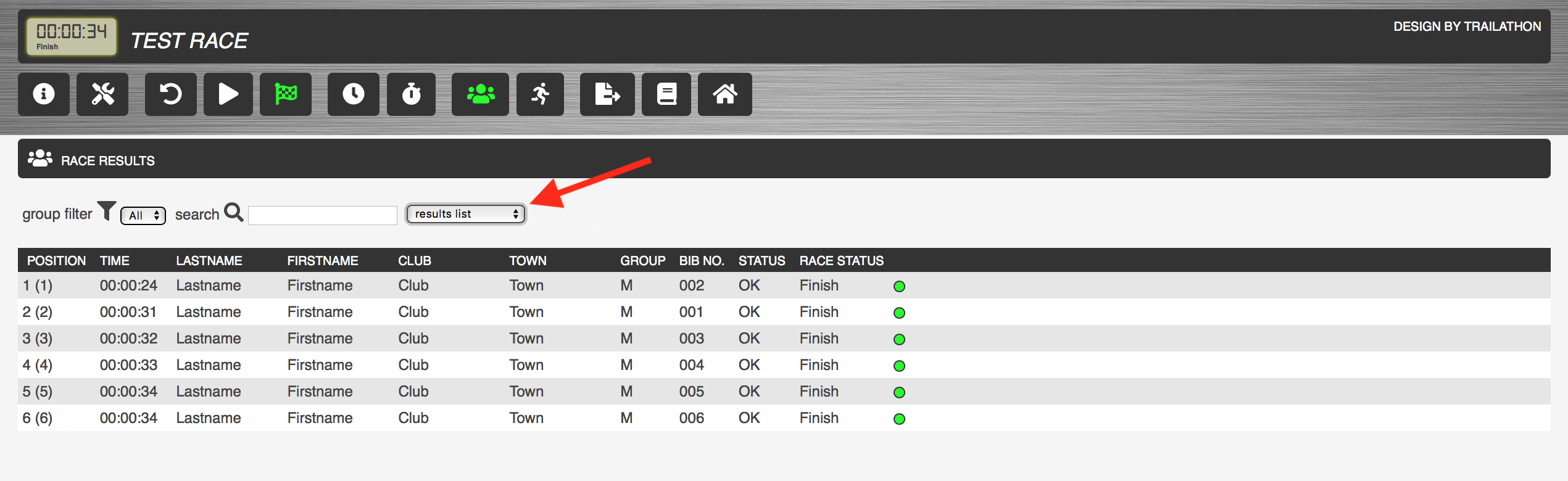
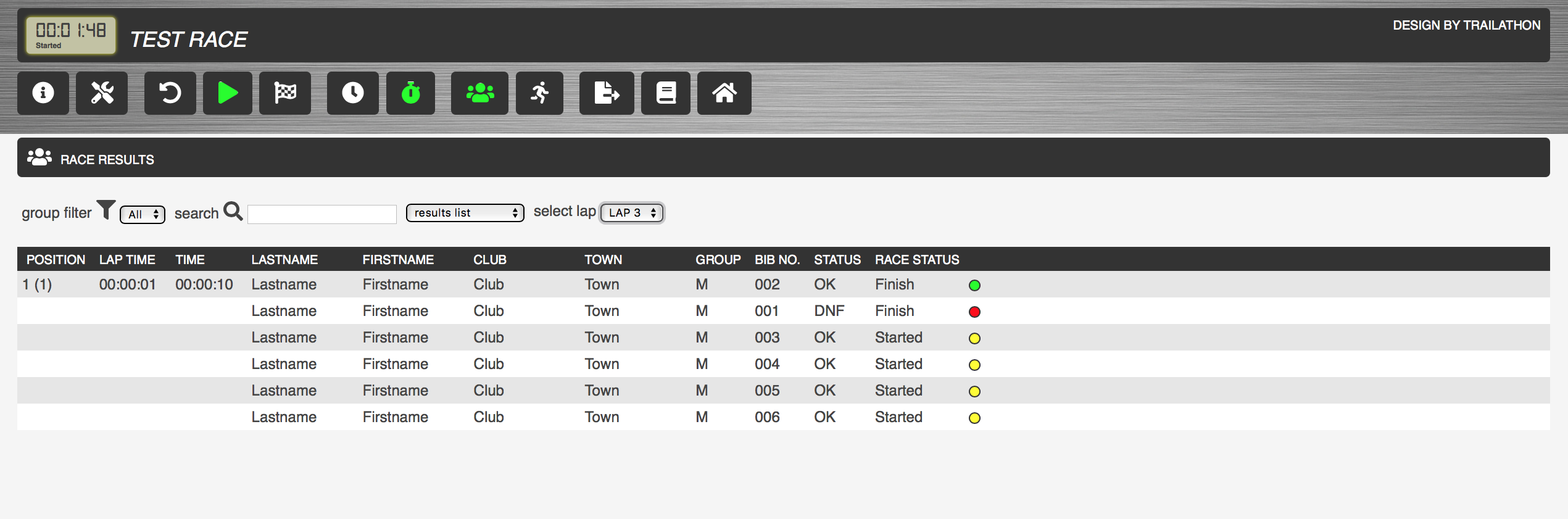
With the runner administration panel open, select results list in the list type select menu to generate the results list. The generated results list can be filtered using the group filtering and search functionality. As default the group filter is set to All, which means that all runners will be listed. The position is then the race position and the number within parentheses is the position in the group. If one of the other groups is selected, the position is the group position and the number within parentheses corresponds to the total position in the race.
Multi-lap race
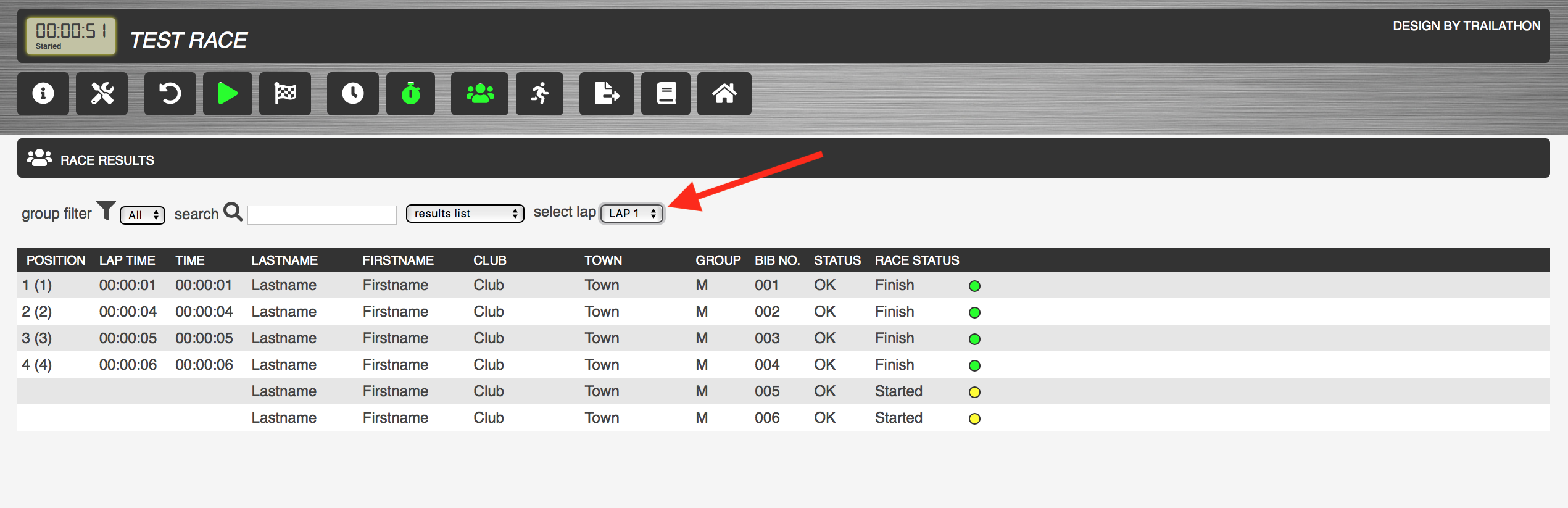
For multi-lap races, select the lap for which you want to generate a results list. With a lap selected (the default value is the maximum lap number registered), the list functionality is the same as for a single-lap race.
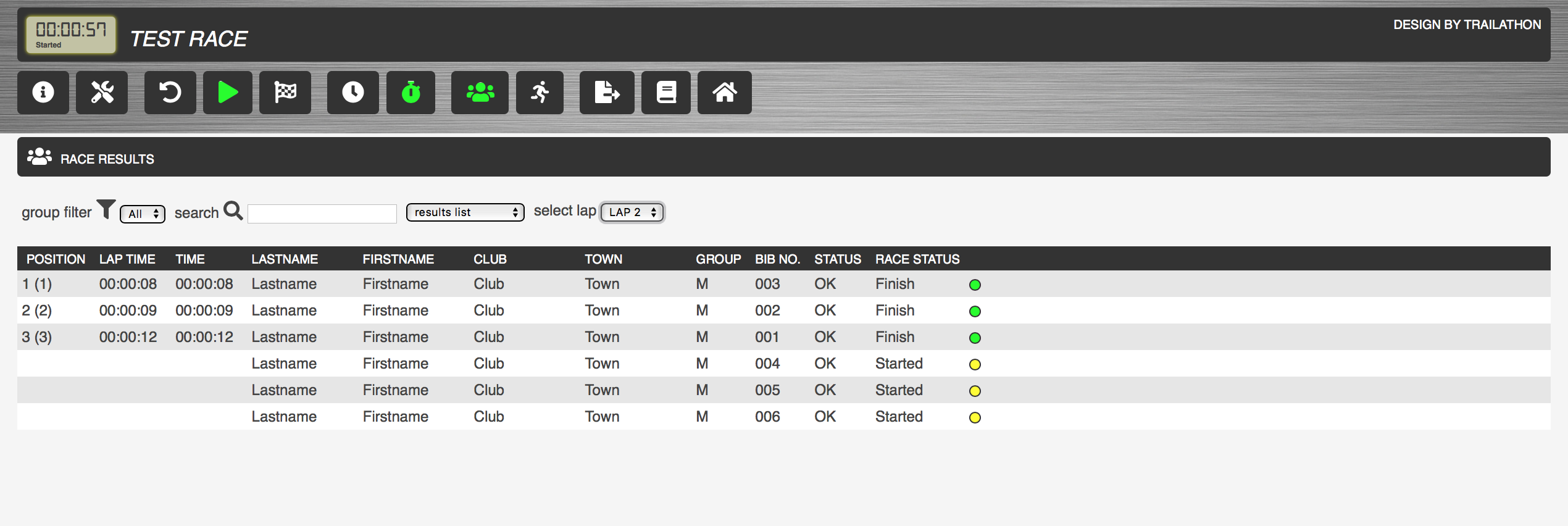
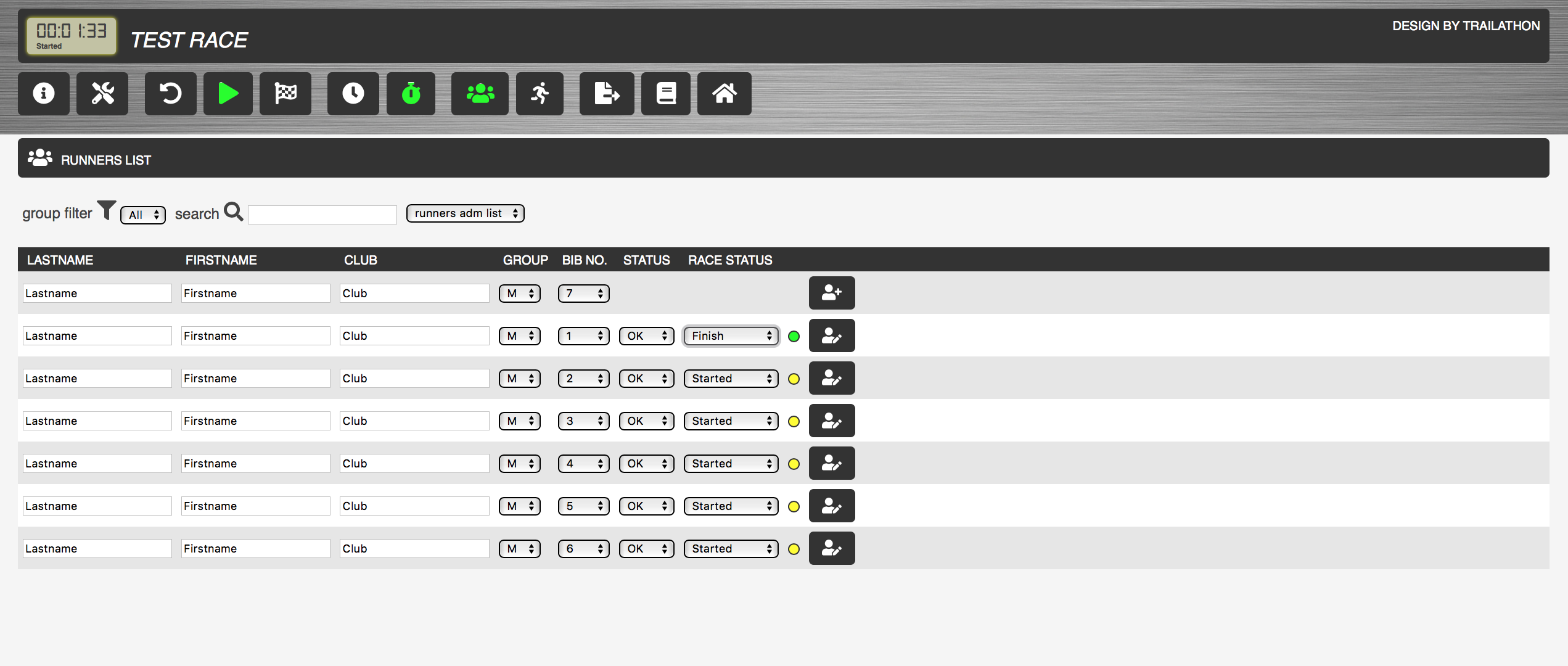
If a runner decides to stop after a number of completed laps, open the runner administration panel, set list type to runners adm list. Change race status to Finish for the runner. The runner will appear as DNF in the results lists for the following laps.
RACETIMER data is exported to a JavaScript Object Notation (JSON) file using the export button . The JSON data string will be generated internally and downloaded to your default Downloads location. This is the only way to save data from the RACETIMER since client-side code is not allowed to access the host file system. Make sure to export a JSON file every now and then in order to make sure that data can be recovered if needed. An exported file can later be imported by dragging the file and drop it anywhere inside of the RACETIMER window.